![OXFORD_GLOBAL-LOGO_SYMBOL 500px.png]](https://lp.oxfordglobal.co.uk/hs-fs/hubfs/OXFORD_GLOBAL-LOGO_SYMBOL%20500px.png?height=40&name=OXFORD_GLOBAL-LOGO_SYMBOL%20500px.png)
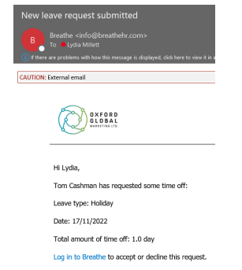
1. An email from Breathe will come through to you when a member of your team submits a holiday request. Click the link to login:
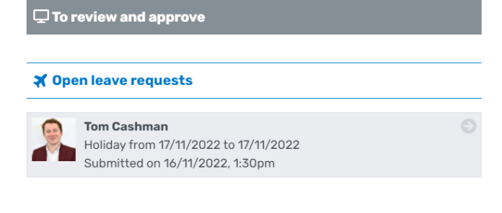
2. On your manager Dashboard, you will see any outstanding leave requests. Click on the arrow to open the request:
3. You’ll then have the option to approve or reject the request:
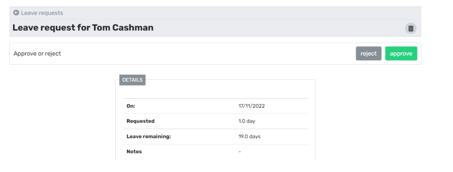
4. If rejecting the request, you’ll need to put a reason in. If approving, this notifies the employee and automatically updates the holiday calendar.
5. If you wish to view your team’s holiday usage, click “People”, “My People” and select their profile then “Leave”.
Employee Handbook - holiday policy / wider Time Off policies
For more information on our Company holiday policy (as well as our other Time Off policies), please refer to our Employee Handbook (Time Off policies - pages 21 to 30).