![OXFORD_GLOBAL-LOGO_SYMBOL 500px.png]](https://lp.oxfordglobal.co.uk/hs-fs/hubfs/OXFORD_GLOBAL-LOGO_SYMBOL%20500px.png?height=40&name=OXFORD_GLOBAL-LOGO_SYMBOL%20500px.png)
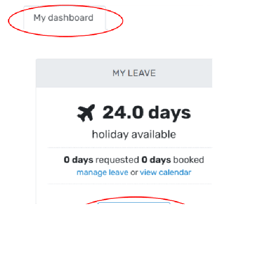
1. Open up BreatheHR and under “My Dashboard” you’ll see your My Leave section. Click on “request leave”:
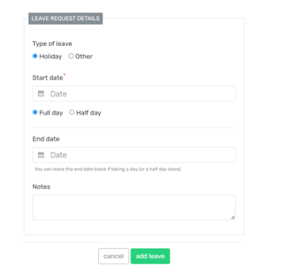
2. Complete the holiday request form, including a start/end date – you can select “half day” for AM/PM only leave. It’s recommended to add notes to keep track of your holiday usage, or if there is something your manager needs to be aware of:
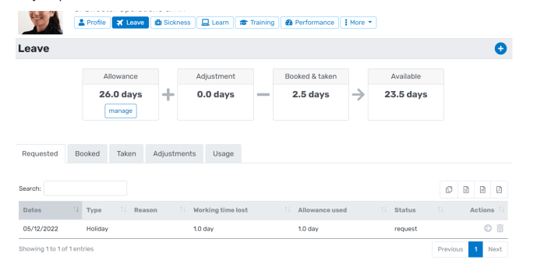
3. Your request will be sent to your manager, and you can check on outstanding holiday by visiting the “Leave” section on your profile:
4. Once approved, you’ll receive an email and the leave will move to the “Booked” tab of your leave section on Breathe.
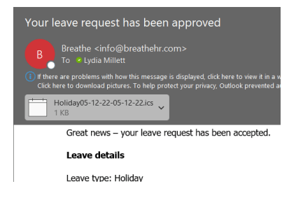
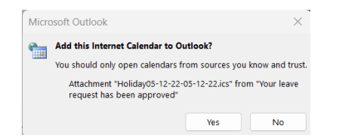
5. Add your leave to your personal calendar so people can see you are away when requesting meetings – open the calendar attachment and click Yes:
6. Ensure you change the “Show As” dropdown to “Out of Office”, and click save:

7. The holiday will automatically add to the shared calendar for other staff to review, so you do not need to add this manually. Do not add anything manually to this calendar – it should always go through Breathe. Please note that it may not show instantly and can take a few minutes to sync.

8. When you are logging off before any scheduled leave, ensure you have your email out of office on, and you have set your Teams status so other employees know how/when to contact you.
Employee Handbook - holiday policy / wider Time Off policies
For more information on our Company holiday policy (as well as our other Time Off policies), please refer to our Employee Handbook (Time Off policies - pages 21 to 30).
For more information on the importance of taking regular holiday on your wellbeing - please visit our library of archived Wellbeing Wednesday posts.